
The Template Designer includes some tooling to validate the syntax of the template and how the resulting document would look like. You can test your template by using buttons from the Buildsection of the ribbon:

Compile
Clicking on this button validates that the template's code is syntactically correct. Any warnings or errors will be displayed in the Diagnostic window.
Diagnostic
Clicking on the button will show/hide the Diagnostic window.
If everything is fine, there will be a green check mark. Clicking on the "Play" button at the top right of that window will validate the template.
The window lists all warnings or errors. You can click on the row to bring you to the tag in error directly.
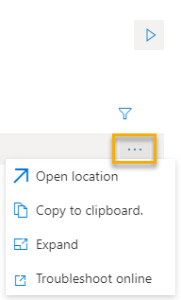
Clicking on the three 3 dots will show you options for this specific error.
-
Open location: Brings you to the tag in error
-
Copy to clipboard: Copies the error message to the clipboard
-
Expand: If the error message is too long, clicking on Expand will pop-up a window showing the complete error message
-
Troubleshoot online: Will open a page searching the error on the Microsoft website in your default browser. It no results are found for the error, a 404 - Page not found message is displayed.
Preview
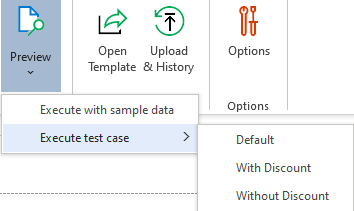
Clicking on the button will produce another Word document based on some test data. It implicitly does a Compile/Diagnostic. Multiple test cases can be created under the template's Settings and will be listed under the down arrow of the button.
-
Clicking on the Preview main icon runs the default test case.
-
Clicking on Execute with sample data will used the Data source's data.
-
Clicking on a specific test case will use that specific test case's data.