Add a Smart Flows connection
This section provides a guided walkthrough on creating a connection to an existing Smart Flows project.
-
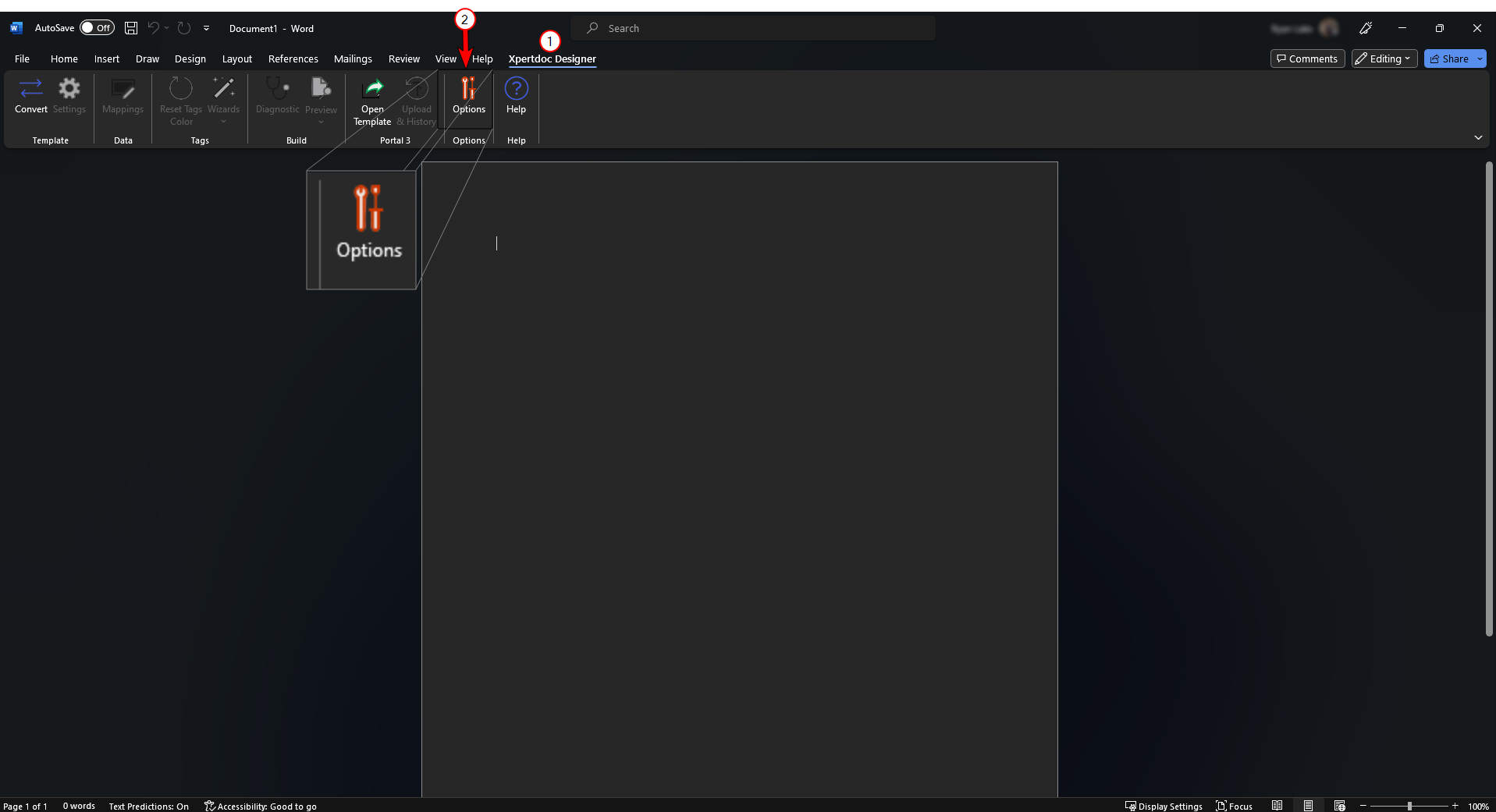
In Microsoft Word, select the Xpertdoc Designer tab.
-
Select the Options button.
-
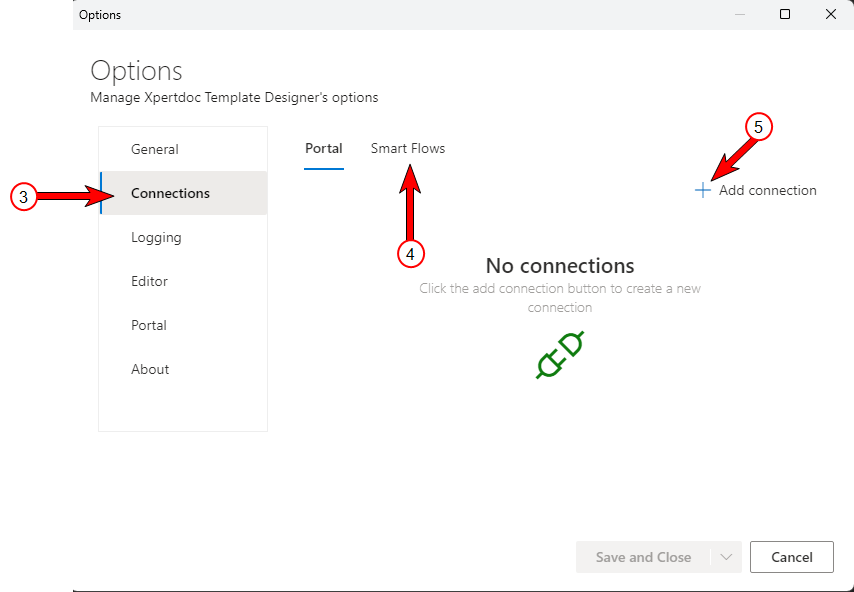
Select Connections in the side-navigation.
-
Select the Portal option.
-
Select Add connection.
-
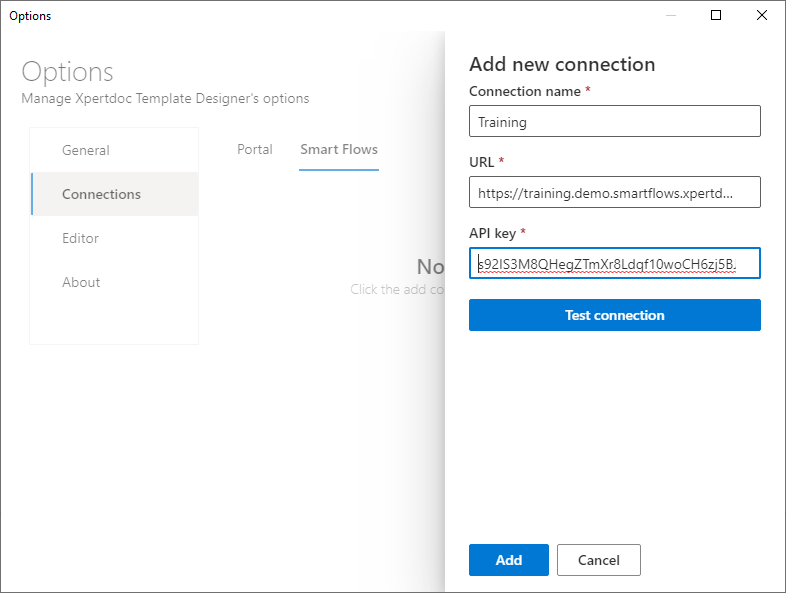
In the Connection name field, enter a name for the connection.
Only include up to the .com of the URL. If you include the entire URL, it can cause the connection to fail or time out. Ex:https://xyz.xyz01.smartflows.xpertdoc.com/
-
In the URL field, enter the URL for your Portal instance.
-
Enter an API key for your user.
The API key should be provided to you by your organization's Smart Flows Administrator.
-
Select Test connection.
-
Select the Add button.
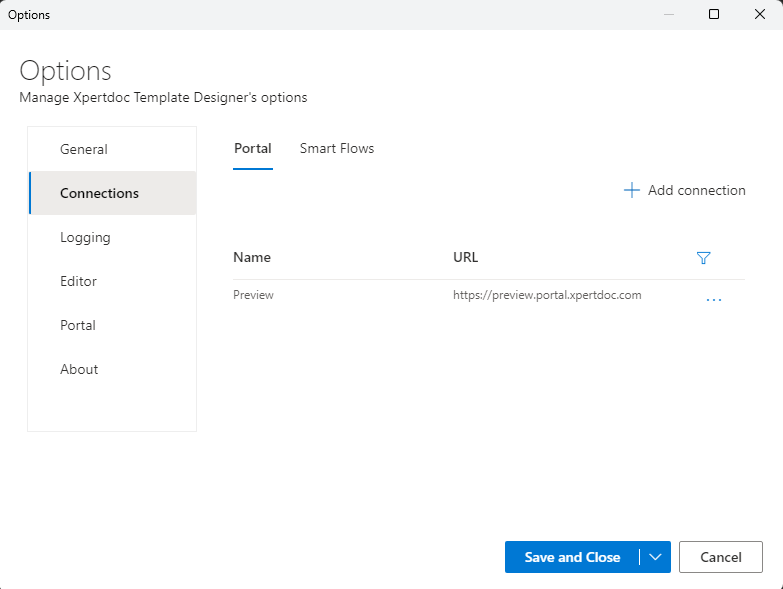
Your Smart Flows instance displays in the List view.
-
Select Save and Close to exit the Connections dialogue.