The Experlogix Template Designer 12 is a Word Add-in allowing the users to create templates that will be used when generating a document. The templates created using this authoring tool are executed through the Experlogix Portal, which comes with specific editions of the Experlogix solution. You can find the details of the different editions here.
Template Designer Interface
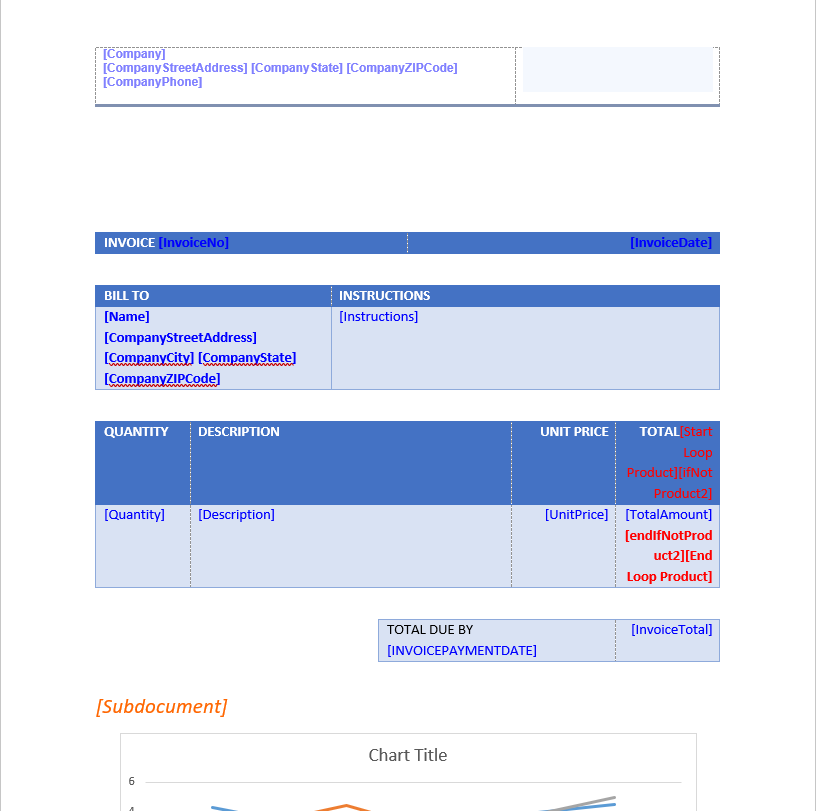
This is the Program Interface for the Template Designer Word Add-in:
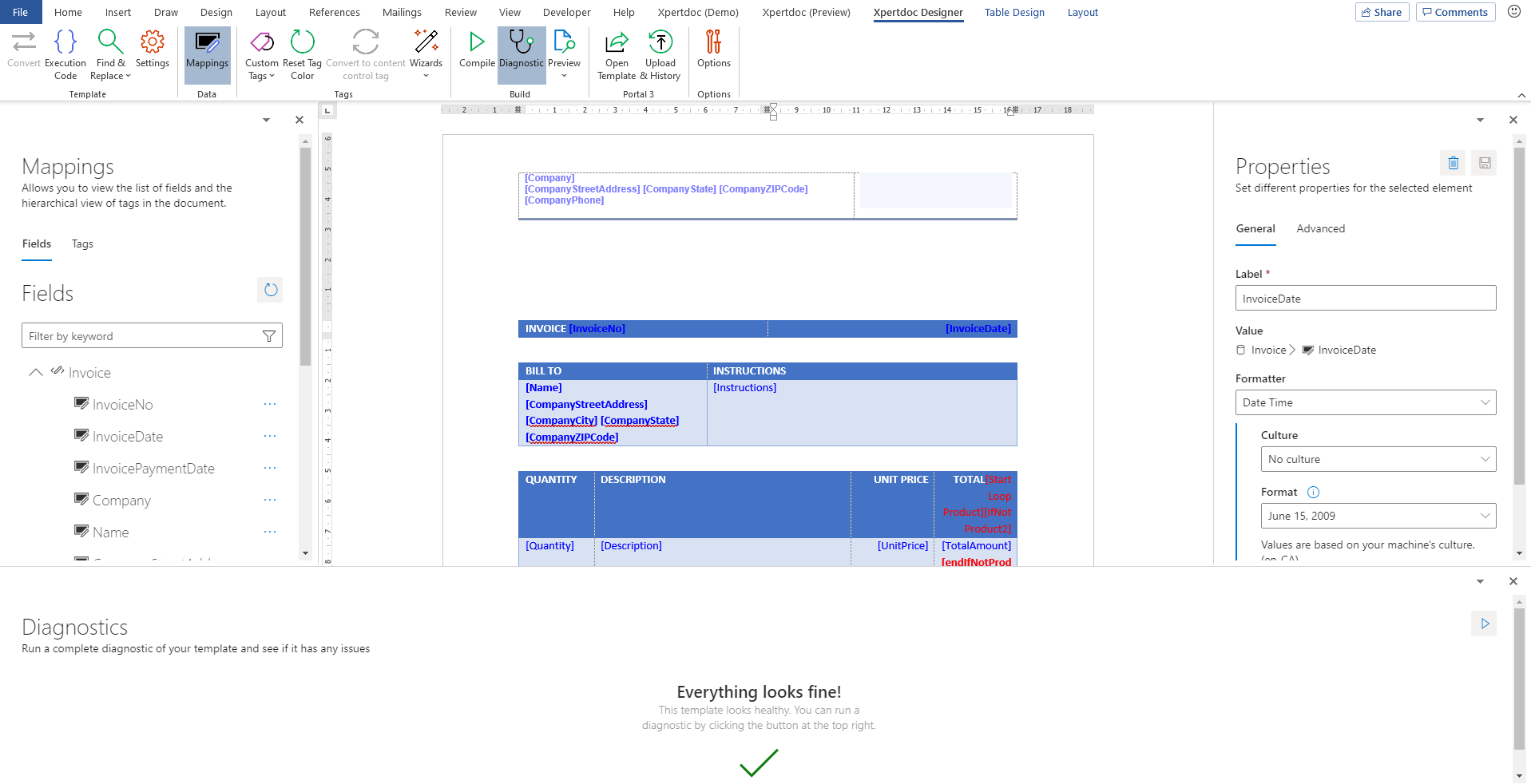
Template Designer Ribbon
The Template Designer ribbon, giving the users the ability to add dynamic information to their Word document.

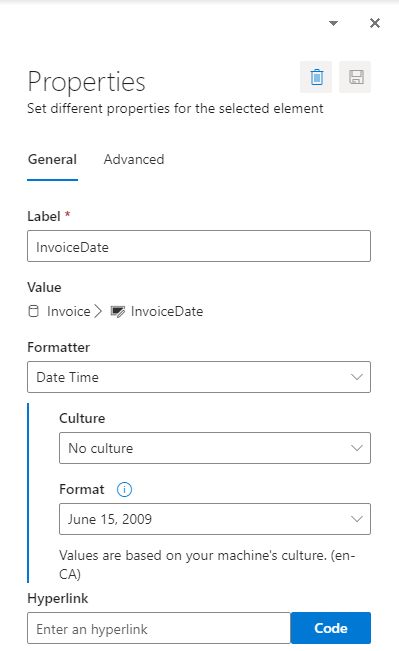
Properties Pane
The Properties pane, allowing the users to change a tag's properties.
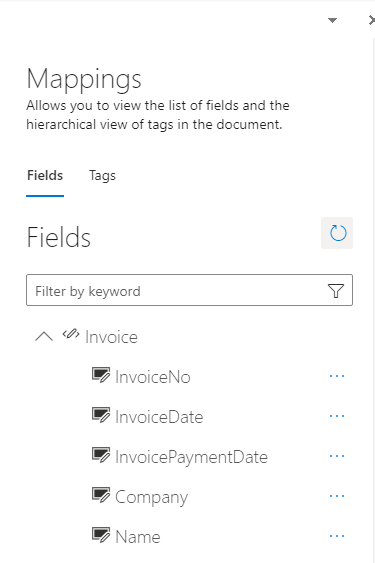
Mapping Pane
The Mapping pane, showing all possible fields to insert and already inserted fields under different tabs.
Document Area
The Document area is the template's canvas.
Resolving Unsaved Changes
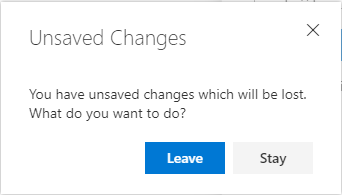
When leaving a screen that has changed, the application will recognize it and suggest two options.
-
Leave will discard the changes
-
Stay will bring you back to the screen to review and save the changes
Application Grid and Tree view
The application shows grids and tree views in different screens. Some patterns are used and described below.
-
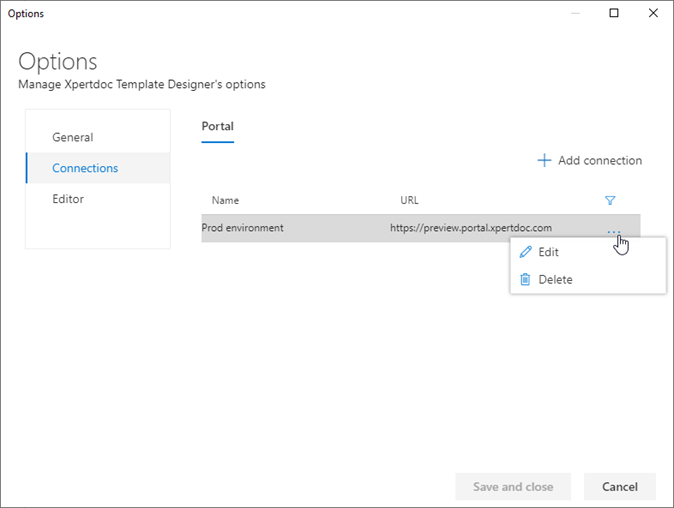
The three dots on a row provide additional actions for the record (i.e. Edit and Delete in the above example)
-
Depending on the context, records can sometimes be filtered by clicking on the funnel icon at the top right of the screen
-
Global action buttons will always be visible above the grid (i.e. Add connection in the above example)