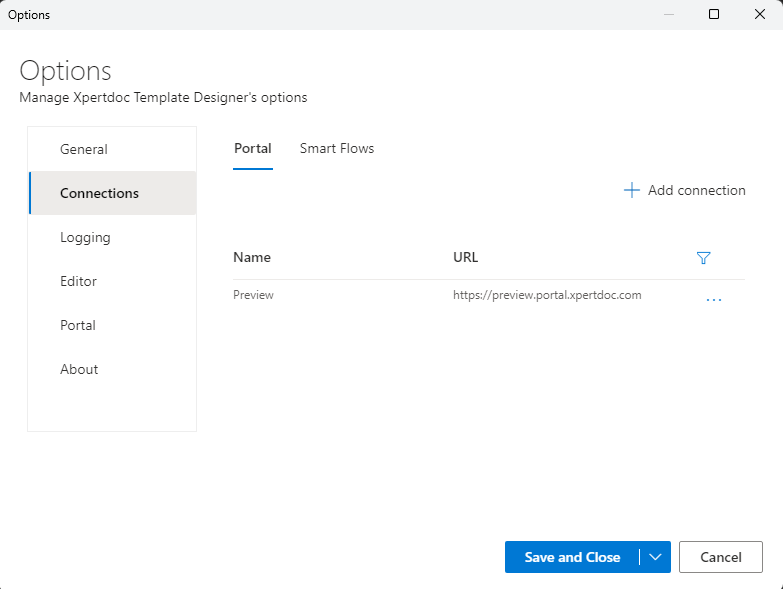
Add a Portal connection
This section allows you to create connections to the Experlogix Portal to open or upload templates.
-
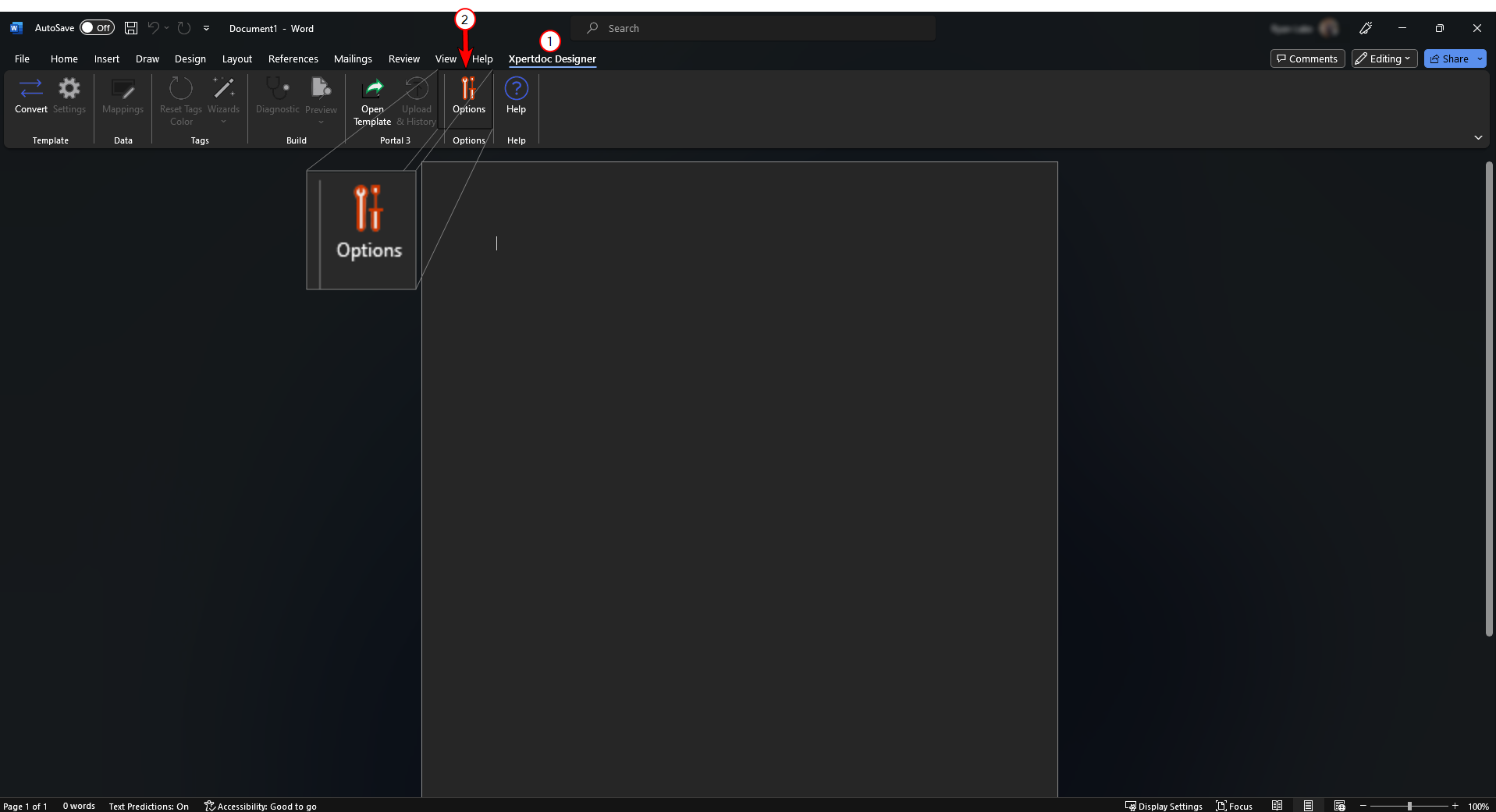
In Microsoft Word, select the Xpertdoc Designer tab.
-
Select the Options button.
-
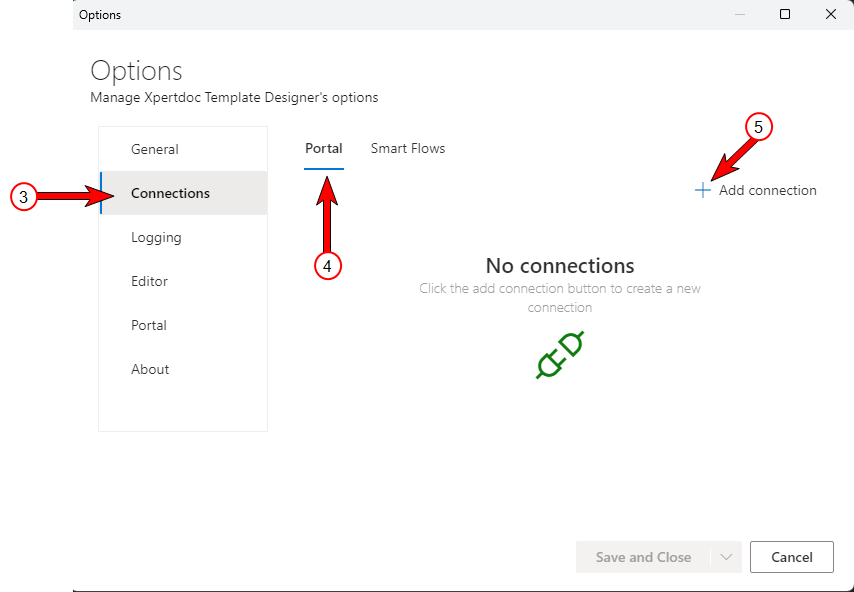
In the side-navigation, select Connections.
-
Select the Portal option.
-
Select Add connection.
-
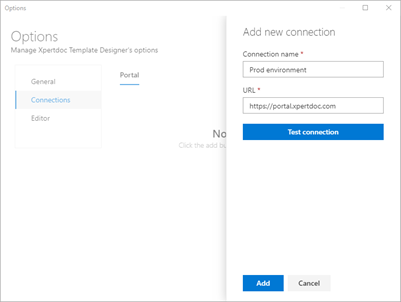
In the Connection name field, enter a name for the connection.
-
In the URL field, enter the URL for your Portal instance.
-
Select Test connection.
-
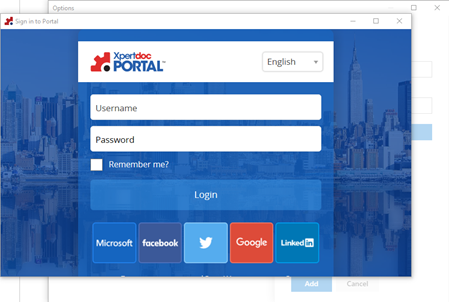
The user will be asked to enter Portal credentials or automatically log in, depending on how the instance is configured.
-
Select the Grant button to authorize Template Designer to connect to the Xpertdoc Portal.
Template Designer uses OAuth to connect to a Portal instance.
-
Select the Add button.
Your Portal instance displays in the List view.
-
Select Save and Close to exit the Connections dialogue.